Features
What PIC does today, in the beta. Things we're still building are listed separately at the end.
PIC is a new app, written for current Android. It carries no years of legacy code and isn't held back by keeping slow, outdated tablets happy, so each feature below is built the way it should work today.
Charts and plates
Every chart and plate comes from the FAA, downloaded by region so it's there with no signal.
- IFR enroute charts in vector
- Drawn from the FAA's own vector chart files and aligned against the FAA's published navaid positions, so lines and type stay sharp at any zoom. In night mode the paper goes dark and the airspace colours keep their meaning.
- Sectionals and terminal area charts
- The FAA's VFR charts under the same moving map, with the chart's legend from the FAA's Chart User's Guide a tap away.
- Vector plates
- Approach plates, departures and arrivals drawn by the app from the FAA's vectors: crisp when you zoom, and much smaller to download than the PDFs.
- Airport diagrams
- First in every airport's list of plates.
- Your position on the plate
- Own-ship and its track on georeferenced plates and airport diagrams, and a georeferenced plate can be laid over the moving map.
- Satellite airport views
- USDA NAIP aerial imagery of each airport, fetched when you zoom in, open the airport, or put it in your plan. You can download them ahead of a trip.
Planning
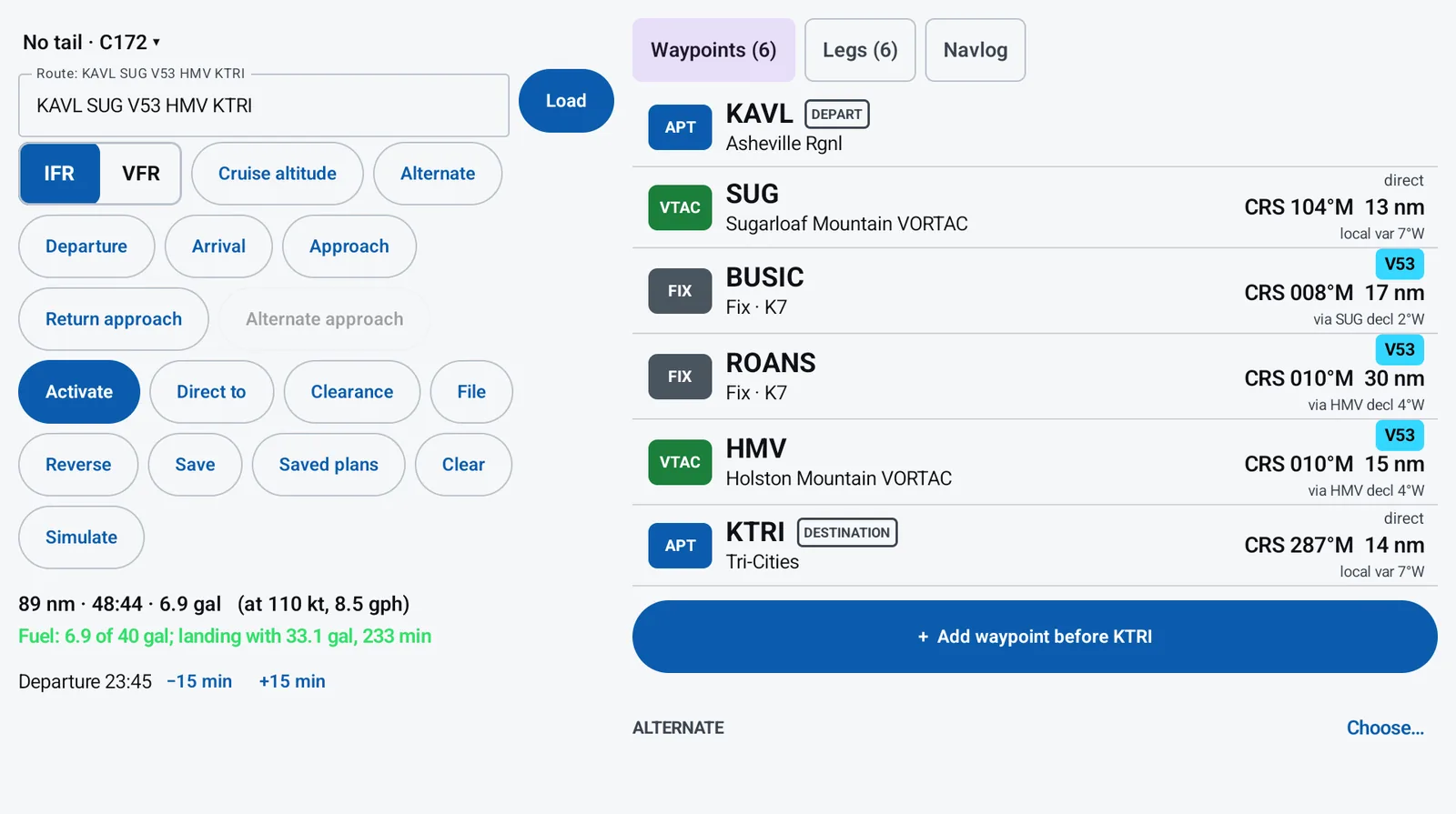
A planner that does the work you'd do with a chart and a calculator, and tells you why it chose what it chose.
- Route editing your way
- Type a whole route in the usual format, or add, insert, move and remove waypoints one at a time. Every waypoint shows its name, not just its identifier, and a plan reverses for the return trip.
- DPs and STARs ranked by distance flown
- The procedures for your airports come shortest first, each labelled with (+Nnm): how much further it is than the shortest one that joins your route. Procedures your aircraft can't fly, such as jet-only ones in a piston or RNAV ones without GPS in your filed equipment, are hidden behind one tap.
- Approaches at both ends
- Choose approaches for the origin (for a return), the destination and the alternate, and see the minimums for your approach category with the inoperative components you pick.
- Auto altitude
- A cruise altitude chosen for fuel and time with the winds aloft, above the minimum safe altitude along the route and the airway MEAs for your equipment (VOR, GPS or both), within your oxygen and ceiling limits, and clear of restricted and prohibited areas and TFRs. The reason comes with it, for example "6,500 ft: MSA 6,400 along V222".
- Auto alternate
- Whether you need an alternate, and which airports qualify, by the FAA's alternate rules: your filed equipment decides which approaches you can fly, and only the forecast at your ETA decides whether they're good enough. Each airport it turns down comes with the reason.
- Useful local approaches
- Approaches at nearby airports that take you below the minimum safe altitude near your field, with how far below and how far away. Set one as your approach and alternate in a tap.
- Holds and user waypoints
- From Point Brief, fly a published hold at a fix, build an unpublished hold anywhere (inbound course, turn direction, leg in minutes or miles), or save a named user waypoint to use in your plans.
- Direct-to and simulation
- Direct to any airport, navaid, fix or point, and back to the plan afterwards. Simulate the flight on the ground before you go.
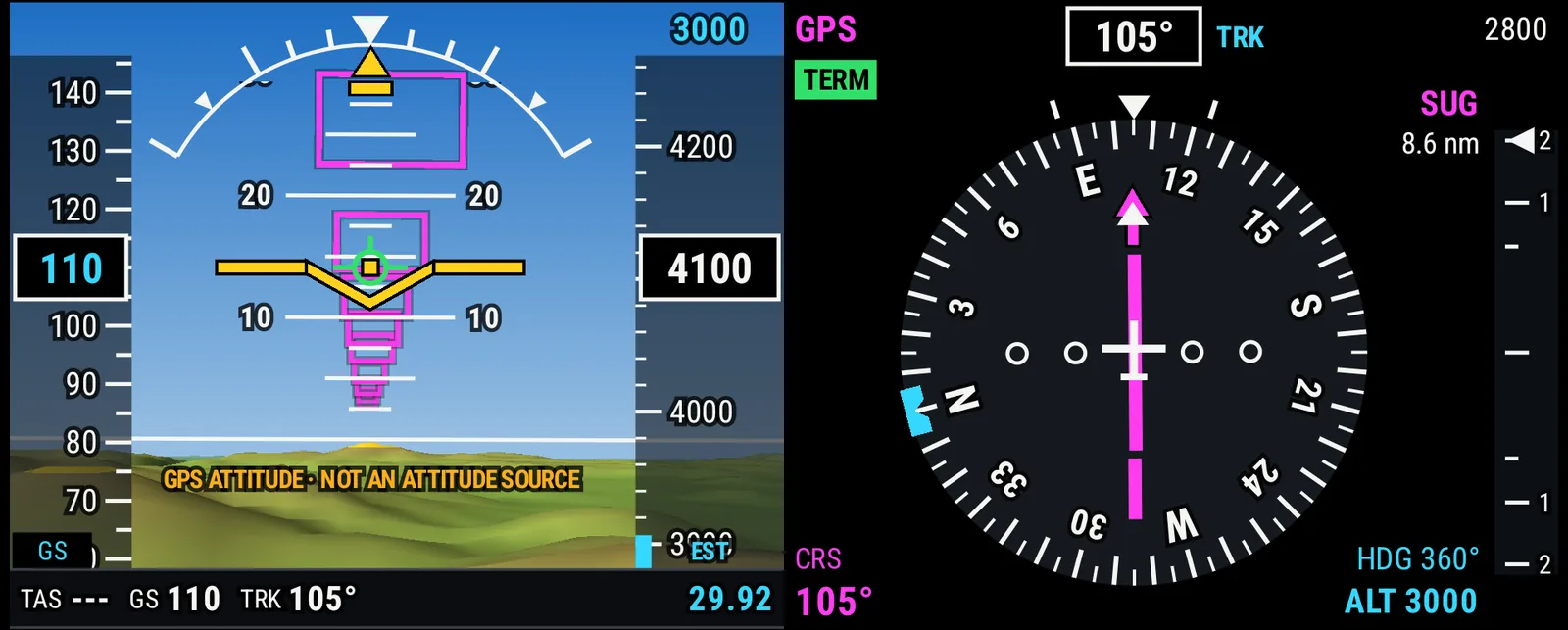
PFD, MFD and PROC
Three flight displays, each a button in the navigation bar, on their own or sharing the screen.
- PFD
- Attitude with synthetic vision and a highway in the sky, speed and altitude tapes, and an HSI with your course and the next fix.
- MFD
- The moving map: IFR enroute charts, sectionals and terminal area charts, with your route, weather, traffic and airspace.
- Split screen
- Turn on the PFD and the MFD together. Held upright, the PFD sits above the map with its attitude display on the left and the HSI on the right; held sideways, the PFD is on the left and the map on the right. The last display on stays on, so the screen is never empty.
- PROC
- The plate of the procedure that matters next, from the departure until you're airborne to the arrival and then the approach, with tabs for the others. Flip through a plate's pages, turn it a quarter at a time (PIC remembers the turn for each plate), and see your position on a georeferenced plate. PROC can share the screen with the PFD and MFD.
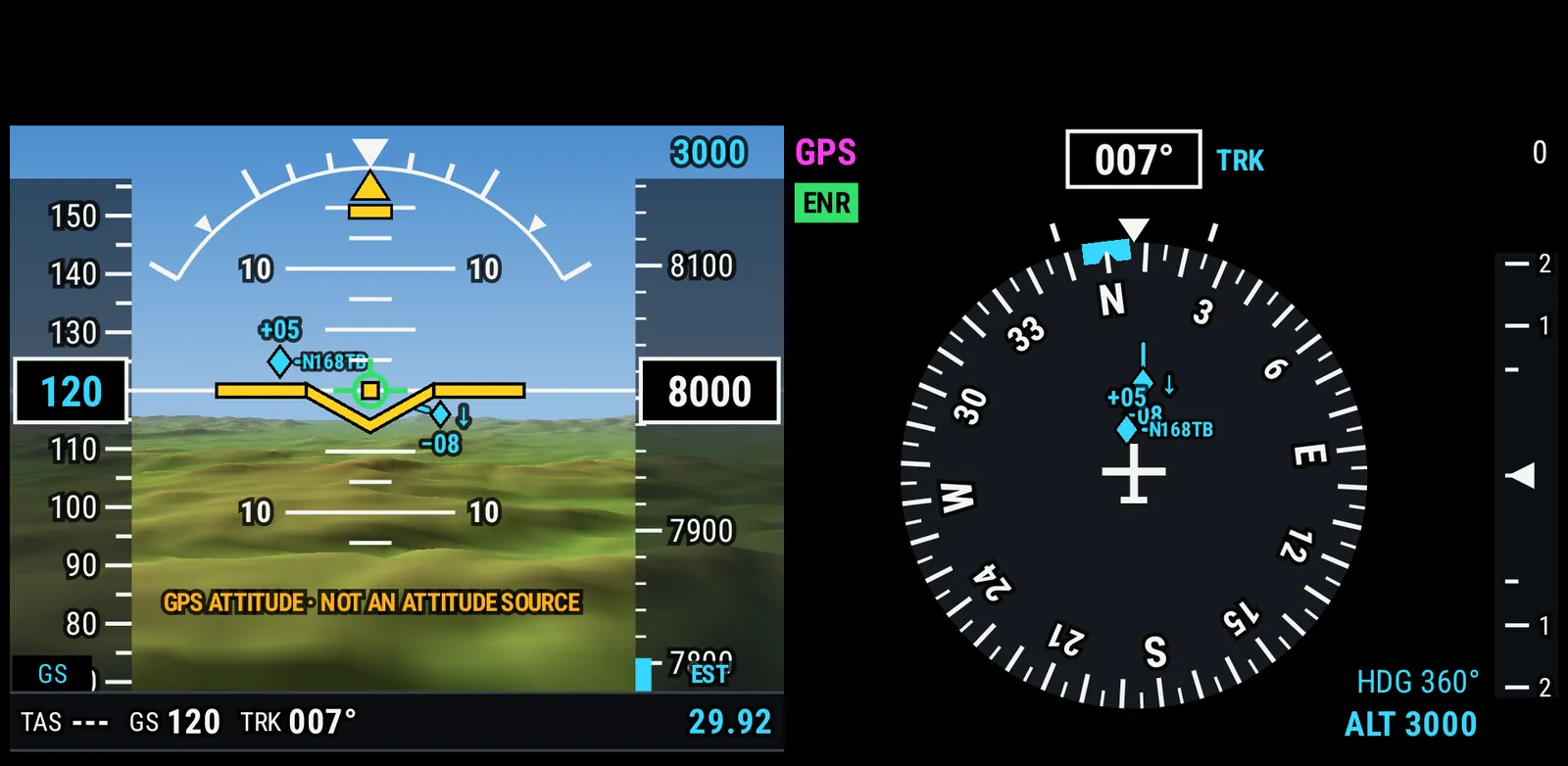
Situational awareness
What's around you, drawn where you'd look for it.
- Synthetic vision with a highway in the sky
- A PFD with terrain in perspective and a pathway of boxes to fly through, beside an HSI with your course and the next fix. Attitude comes from your receiver's AHRS when it has one, otherwise from GPS, and the display says so.
- Traffic, TCAS style
- ADS-B traffic with the standard TCAS symbols and relative-altitude tags on the PFD, HSI and MFD, dead-reckoned between reports so it moves smoothly.
- Weather layers
- NEXRAD radar with a loop, lightning, PIREPs, SIGMETs, G-AIRMETs and center weather advisories. Step the forecast layers through now, +3, +6, +9 and +12 hours. In flight they come from your ADS-B receiver (FIS-B), on the ground from the internet.
- Point Brief
- Press and hold anywhere on the MFD for everything PIC knows about that spot, most important first: airspace, special use airspace and TFRs with whether they're active and how they relate to your altitude, weather, the MVA, terrain, airways and what's nearby. Direct to it, add it to the plan, fly a hold there or save a user waypoint.
- Airspace on the map
- Restricted, prohibited, warning and alert areas, MOAs and national security areas as a layer. Minimum vectoring and minimum IFR altitude sectors as another, with a data-strip readout of the one you're in and the next one along your track.
- Circling area
- When your approach has circling minimums, the circling area for your category is drawn around the airport, labelled with its radius and the plate's circling restrictions.
- Terrain and glide range
- Terrain at or above you in red and within 1,000 feet in yellow, a vertical profile along your route, and an engine-out glide footprint from your aircraft's glide ratio.
- Night mode that's really dark
- Day, Night or Auto, with extra dimming below the screen's lowest brightness for a dark cockpit.
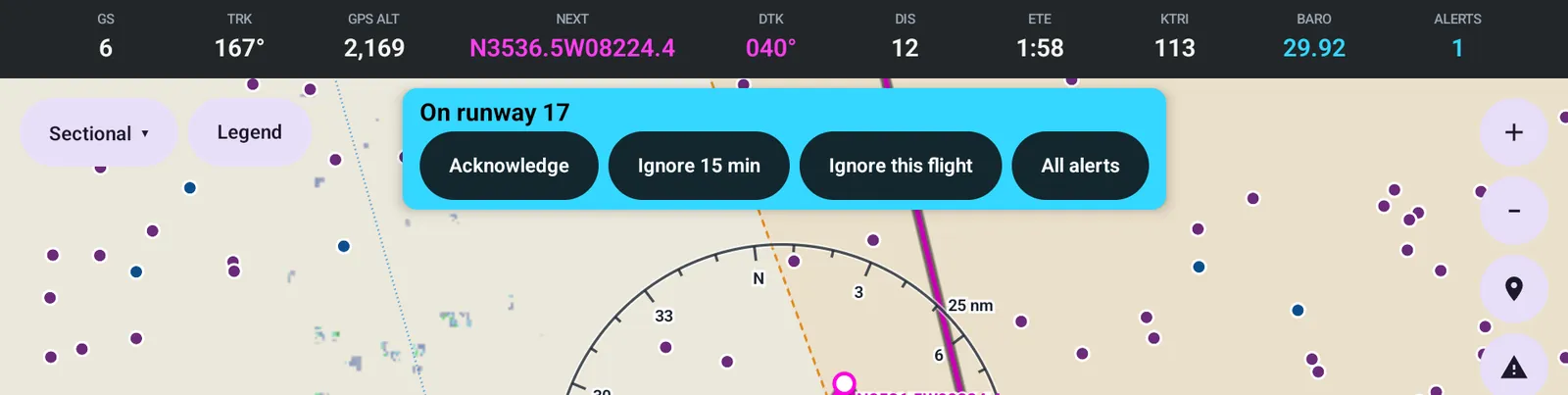
Alerts
One alert system for everything, so every alert looks, sounds and behaves the same way.
- Acknowledge or ignore
- Each alert offers Acknowledge, Ignore for 15 minutes, or Ignore this flight. Every kind can be turned off in settings, and the safety ones ask you to confirm.
- Runway awareness
- Which runway you're lined up on, and a warning when you start a takeoff from something that isn't a runway.
- Altitude
- Leaving your assigned altitude, approaching it, and descending below a published approach altitude or glidepath.
- Altimeter mismatch
- Your altimeter setting compared with the nearest METAR, and with 29.92 above the transition altitude.
- Fuel and reserve
- When the fuel you'll land with drops below the FAA reserve for your flight rules, or below your personal minimum.
- Quiet on arrival
- When you're clearly arriving at an airport, the alerts a normal landing would set off, like terrain, airspace and traffic advisories, are held back and the banner says so. Traffic warnings, runway awareness, approach altitudes and fuel still sound, and everything comes back on a go-around.
- Terrain, traffic and airspace
- Terrain and obstacles ahead, traffic on a collision course, and airspace and TFRs ahead of you.
Aircraft and fuel
Your aircraft, set up once and kept with your account.
- A hangar
- Several aircraft in one account, one of them active. Your plan, fuel and filing defaults follow the active aircraft.
- Cloud sync
- Sign in and your hangar follows you to your other devices.
- Sharing by email
- Share an aircraft with a partner or club member by email address, to use or to edit, and revoke it when you need to.
- 69 performance profiles
- Pick a type and PIC fills in cruise speed, fuel burn, usable fuel, glide ratio and approach category from published figures. Every number stays editable.
- A fuel estimate you can trust more each flight
- Fuel remaining estimated through taxi, climb, cruise and descent with density altitude, for 100LL, Swift 100R, G100UL, UL94, mogas and Jet A. Log what you add, and topping off calibrates the burn.
- Weight and balance
- Enter your aircraft's figures from the POH once, then the loading: PIC shows the total weight and the CG drawn in the envelope, green inside and red outside it or over the maximum.
Receivers and avionics
PIC works with the portable receiver you already own, and can talk to what's in your panel.
- Stratux, iLevil and other ADS-B receivers
- Any receiver that sends GDL 90 over Wi-Fi, including Stratux, iLevil, SkyEcho, Sentry and Stratus in open mode, for traffic, FIS-B weather, GPS and AHRS. PIC reads a Stratux's own status for its GPS, AHRS and uplink, and an iLevil BOM gives the PFD real indicated airspeed.
- Serial output and PortaPilot mode
- The flight plan and your position sent through a Bluetooth serial adapter as NMEA 0183, Garmin Aviation or GNS 480 MapCom, for an autopilot, moving map or fuel computer. PortaPilot compatibility mode is for autopilots that ignore roll steering: holds, hold entries, procedure turns, DME arcs and large turns go out as extra waypoints, so flying straight to each one traces the path. It hasn't been tested with a PortaPilot yet, so try it in VMC first.
- A second display
- Pair two devices, such as a tablet and a phone, on the same Wi-Fi. They share the flight plan, direct-to, the altimeter setting, the assigned altitude, alert acknowledgements, the timer and fuel entries, and each keeps its own screens.
- Position without a GPS fix
- A tablet with no fix, indoors or without GPS, still places you on the map from its network position, marked approximate. PIC gives no alerts or guidance from it.
- A landing to start
- An optional landing sound when PIC opens, only when your ringer is on.
Airport data
What you'd look up before you call or before you go.
- Remarks, with tap-to-call
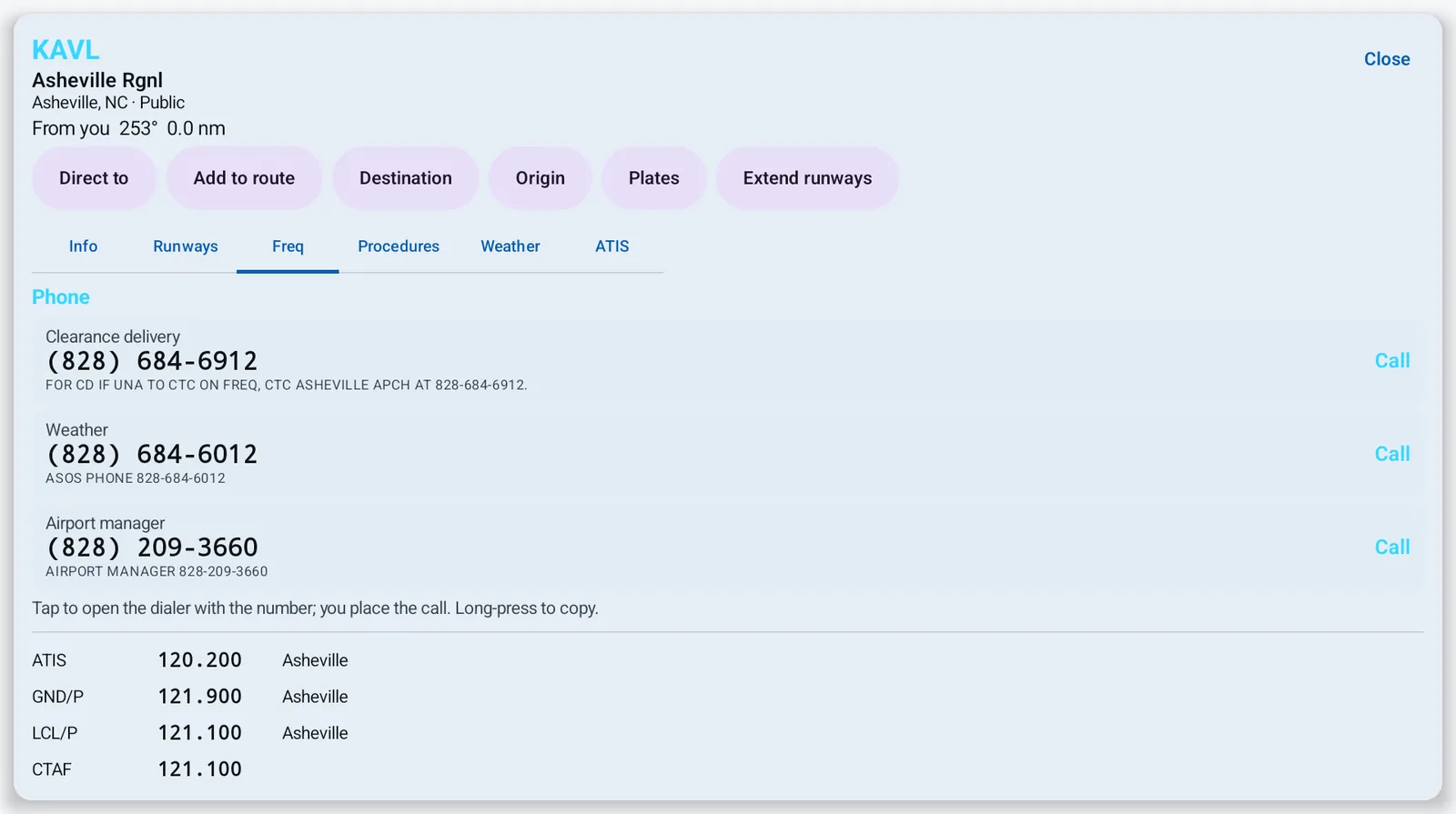
- The FAA's airport remarks in plain view, with phone numbers for clearance delivery, weather and the airport manager pulled out. Tap one to open the dialer; you place the call.
- Text ATIS
- The digital ATIS for airports that publish one, a tap from the airport sheet or from a long-press near the field.
- Runways and wind
- Each runway's length, surface and lighting, and the headwind and crosswind on it from the latest METAR.
- Frequencies and procedures
- Every frequency, and every approach, departure and arrival, ready to add to your plan.
Coming soon
We're working on these. They aren't in the beta yet, and we won't promise dates.
- Filing flight plans, and your expected route from ATC before you depart.
An aid, not a navigation source
PIC is not a certified navigation source and is not approved as a primary means of navigation. Its attitude comes from GPS or a portable AHRS. Check every plan it makes against official sources and get an official briefing.